
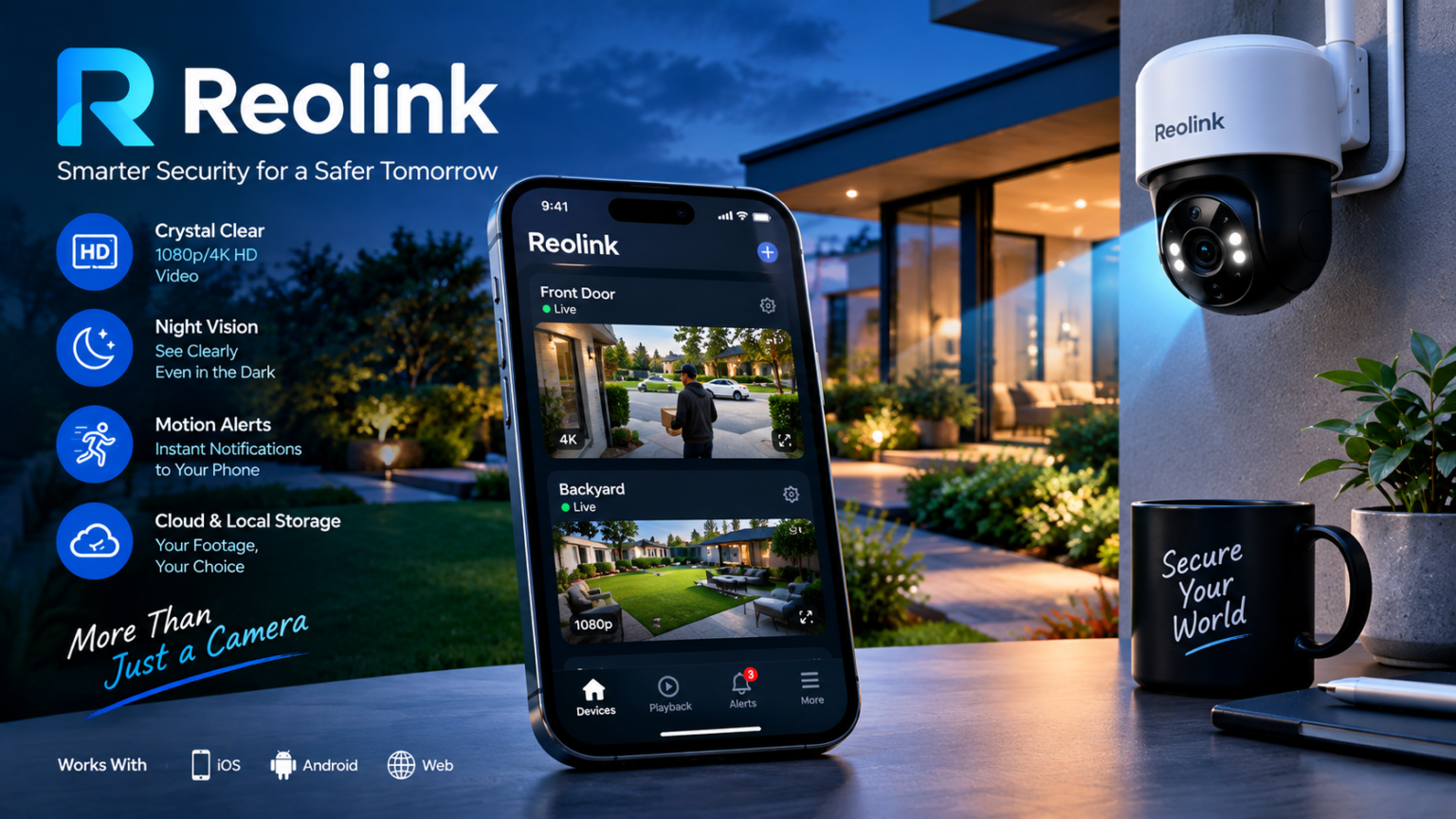
The Reolink App is a mobile application designed to help users set up, control, and monitor compatible Reolink security cameras, NVRs, and other supported devices. It puts many security functions directly on a smartphone, allowing users to check their cameras without needing to be in front of a computer.
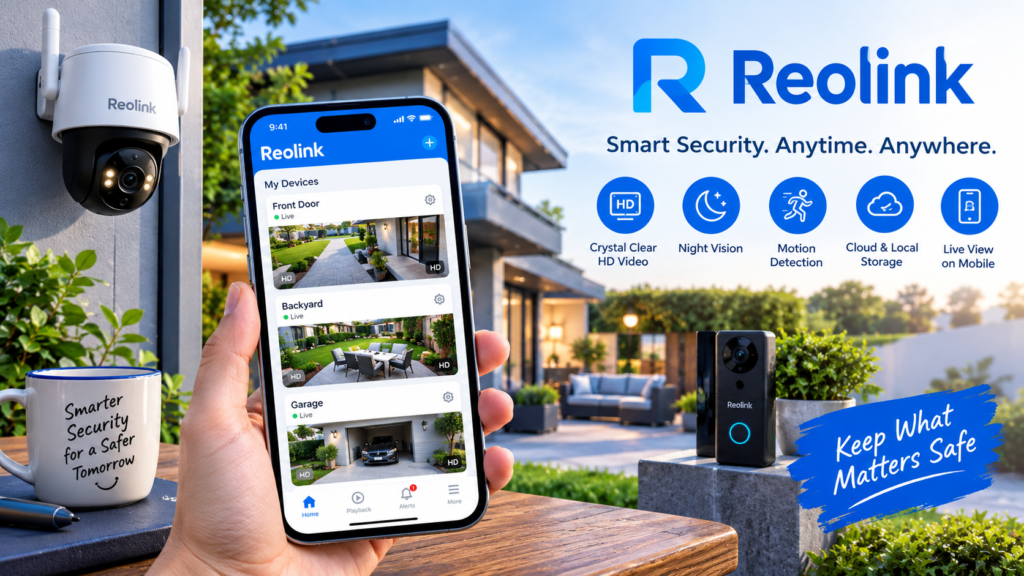
With the app, users can view live camera feeds, watch recorded footage, receive motion alerts, adjust camera settings, and manage supported Reolink devices. Reolink also supports features such as two-way audio, digital zoom, multi-camera viewing, and recording playback.
In this article, we will explain what the Reolink App is, how it works, its main features, how to set it up, which devices it supports, and what users should know before using it.
What Is the Reolink App?
The Reolink App is a smartphone application created for managing Reolink security products. It is available for Android and iOS devices and is designed to work with Reolink cameras, NVRs, and other supported devices.
The app acts as a central control point for a home or business security system. Instead of accessing each camera through a separate interface, users can add their supported devices to the app and manage them from one place.
Reolink says the app can be used to set up devices, modify settings, view live footage, review recordings, and receive alarm notifications.
How Does the Reolink App Work?
The basic process begins by connecting a compatible Reolink device to the network and then adding it to the app. Depending on the camera model, setup can involve Wi-Fi, Ethernet, PoE, Bluetooth-assisted configuration, or a 4G/LTE connection.
Users can normally add a device by scanning its QR code or by entering its UID when the setup method requires it. The exact process varies between different Reolink product families.
Once the device is connected, users can open the camera from the app and access the functions supported by that particular model.
Main Features of the Reolink App
The Reolink App includes a wide range of features for monitoring and managing compatible security devices.
Live Camera View
Live View is one of the main reasons people use the Reolink App. It allows users to see what their connected cameras are capturing in real time.
Reolink also supports multi-camera viewing, with its support documentation describing remote multi-screen live streaming of up to 16 screens.
This can be useful for people managing multiple cameras around a home, office, shop, or other property.
Video Playback
The app can also be used to review previously recorded footage. Supported recordings can come from a camera’s microSD card, an NVR’s hard drive, or Reolink Cloud.
This means users do not necessarily need to be physically beside the recording device to review available footage.
The exact playback and recording options depend on the camera, storage method, and configuration.
Motion Alerts
Reolink cameras can send push notifications when supported motion or detection events occur. Users can configure detection-related settings through the app, depending on their camera model.
Reolink’s documentation also covers options for motion detection sensitivity, PIR settings on supported cameras, recording schedules, and push notifications.
These alerts can help users know when an event has been detected without constantly watching the live camera feed.
Two-Way Audio
Supported Reolink cameras can provide two-way audio through the app. This allows users to listen to audio from the camera and, on compatible devices, speak through the camera.
This can be useful for communicating with someone near a supported camera or for checking what is happening around the device.
The availability of two-way audio depends on the particular Reolink camera.
Digital Zoom
The app supports digital zoom on compatible Reolink cameras. Users can zoom into parts of a live image to get a closer view of something visible within the camera’s frame.
The quality of a zoomed image naturally depends on the camera’s resolution and the amount of detail captured in the original video.
Camera Setup Through the App
One of the useful parts of the Reolink App is that it can guide users through initial camera setup.
For Wi-Fi cameras, the setup method can vary. Some models use QR-code configuration, while others support Bluetooth-assisted setup. Reolink also has separate setup procedures for battery-powered cameras, PoE cameras, and 4G/LTE models.
Because different camera models use different hardware and connection methods, users should follow the setup instructions shown for their specific model.
Setting Up a Reolink 4G Camera
Reolink 4G cameras work differently from standard Wi-Fi cameras. They use a compatible SIM card for their network connection.
For supported 4G models, the basic process includes inserting the SIM card, powering on the camera, opening the Reolink App, scanning the camera’s QR code or entering its UID, and completing device initialization.
Some models may require activation of a Reolink-provided SIM card before setup can continue.
Setting Up a Wi-Fi Camera
Wi-Fi camera setup depends on the model. Some cameras can be configured by having the app generate a QR code containing Wi-Fi information, which the camera then scans.
Other supported models can use Bluetooth to receive Wi-Fi information from the mobile app. Reolink notes that Bluetooth setup is supported only through the Reolink App for applicable models.
Following the model-specific instructions is important because not every Wi-Fi camera uses the same setup process.
Setting Up PoE Cameras
PoE cameras have different networking requirements. Reolink says PoE cameras require a wired Ethernet connection for initial setup.
A PoE camera can receive power through a compatible PoE switch or injector while using the Ethernet connection for network communication.
Once the camera is connected to the network, it can be added and managed through the Reolink App.
Reolink App Compatibility
Reolink states that its app supports Reolink cameras and NVRs, although individual features depend on the particular device. Its support documentation also lists Android and iOS requirements for the app.
The app is designed specifically for Reolink products and is not intended as a universal application for third-party cameras.
Reolink’s FAQ states that third-party cameras and NVRs are not supported by the Reolink App.
Can You Use the App Without a Reolink Account?
A Reolink account is not always required. Reolink says users can access devices using the device UID and password without signing into a Reolink account.
However, certain services, including Reolink Cloud and smart-home features, require a Reolink account.
This gives users some flexibility depending on how they want to manage their security system.
Sharing Reolink Cameras With Other Users
The Reolink App also supports sharing devices with other people. This can be useful when multiple family members, employees, or authorized users need access to the same camera system.
Reolink says the same device can be accessed from multiple Reolink Apps, although there are limits on simultaneous online users.
Users should only share access with people they trust and should protect the passwords associated with their cameras.
Reolink Cloud
Reolink offers optional cloud services that can work with supported devices. Cloud storage can provide another place for certain recordings instead of relying only on local storage such as an SD card or NVR hard drive.
The Reolink App can be used to manage supported cloud features, but cloud plans are optional paid services rather than a requirement simply to download the app.
The availability of cloud services can vary by device and region.
App Settings and Customization
The Reolink App includes several settings that let users personalize how the application works.
According to Reolink, users can adjust options such as notification sounds, appearance, storage paths on supported Android devices, app protection passwords, default player modes, automatic Live View, and hardware decoding on Android.
These settings can make the app more convenient depending on the user’s phone and preferred way of monitoring cameras.
Is the Reolink App Free?
Reolink states that downloading and using the Reolink App is free. However, optional paid services are available, including Reolink Cloud plans.
The cost of a Reolink camera, NVR, storage device, or optional cloud service is separate from the app itself.
Users should check the current pricing for any paid Reolink service before subscribing.
Common Problems With the Reolink App
Like any connected security application, Reolink App users may occasionally experience connection problems, stream issues, notification delays, or app crashes.
A good first step is to make sure the camera is connected to the network and that the phone has a working internet connection when remote access is required.
Users should also make sure the Reolink App and camera firmware are updated when appropriate. If the problem continues, Reolink’s official support center provides troubleshooting guides for connection, streaming, notifications, and other issues.
Is the Reolink App Useful for Home Security?
The Reolink App can make a camera system easier to manage because users can access supported cameras, recordings, alerts, and settings from a mobile device.
Its usefulness depends on the camera hardware and how the security system is configured. A camera’s field of view, network connection, storage method, and detection capabilities all affect the overall experience.
The app should therefore be viewed as the control and monitoring software rather than the security system by itself.
Final Thoughts
The Reolink App is a mobile companion for Reolink security cameras, NVRs, and other supported devices. It brings features such as live viewing, playback, motion notifications, two-way audio, digital zoom, device setup, and camera management into one application.
Its setup process varies depending on the type of Reolink device. Wi-Fi, battery-powered, PoE, and 4G cameras can have different installation and network requirements, so following the instructions for the exact model is important.
For Reolink users, the app provides a convenient way to monitor and manage compatible security equipment from a smartphone. Keeping the app, camera firmware, and network setup properly maintained can help provide a smoother experience.
Disclaimer
This article is for general informational purposes only. Reolink App features, device compatibility, operating-system requirements, cloud services, and setup procedures may change as Reolink releases updates or new products. Always check Reolink’s official support documentation for the latest information about your specific camera, NVR, or other device.
Read More: WalkFit App Explained: Features, Benefits, How It Works, and What You Need to Know